
Backup destinations
AWS S3
Connect a bucket on Amazon S3 as a Tusk destination. Create a dedicated IAM user with the minimum permissions Tusk needs.
AWS S3 is the original object store. Setup involves creating a bucket, a dedicated IAM user for Tusk, an access key for that user, and an inline policy granting only the actions Tusk needs. None of it is hard, but the AWS console has a lot of surface area, so this page walks through it.
If you already have a working IAM access key with s3:PutObject, s3:GetObject, and s3:ListBucket on your target bucket, jump to the Connect Tusk section near the bottom.
Create a bucket
1
Open the S3 console
2
Create a new bucket
tusk-backups-yourname) and a region close to you for upload speed. Leave the rest of the settings at defaults: block public access on, versioning off (Tusk doesn't need it), encryption on with the default SSE-S3 key.3
Note your bucket name and region
s3.<region>.amazonaws.com (e.g. s3.us-east-1.amazonaws.com).Create an IAM user for Tusk
Don't use your AWS root account's access keys. Create a dedicated IAM user that only has access to your Tusk bucket. If something ever leaks, the blast radius is limited to the bucket.
1
Open the IAM console
2
Create a user
tusk-backup(or anything you'll recognize). Skip the “Provide user access to the AWS Management Console” option. Click Next.3
Attach an inline policy
{
  "Version": "2012-10-17",
  "Statement": [
    {
      "Sid": "TuskBackupAccess",
      "Effect": "Allow",
      "Action": [
        "s3:PutObject",
        "s3:GetObject",
        "s3:DeleteObject",
        "s3:ListBucket"
      ],
      "Resource": [
        "arn:aws:s3:::YOUR-BUCKET-NAME",
        "arn:aws:s3:::YOUR-BUCKET-NAME/*"
      ]
    }
  ]
}
Replace YOUR-BUCKET-NAME with the bucket you created above. Save the policy as TuskBackup, then create the user.
Why DeleteObject?
DeleteObject to clean up after itself (failed transfers, deleting from everywhere actions). If you want a strictly read-only backup that Tusk cannot delete from, omit s3:DeleteObject. The bucket will become write-only from Tusk's perspective and the Delete from everywhere action will fail for objects in this bucket.Generate an access key
1
Open the IAM user
tusk-backup user.2
Create access key
3
Save the keys somewhere safe immediately
Connect Tusk
1
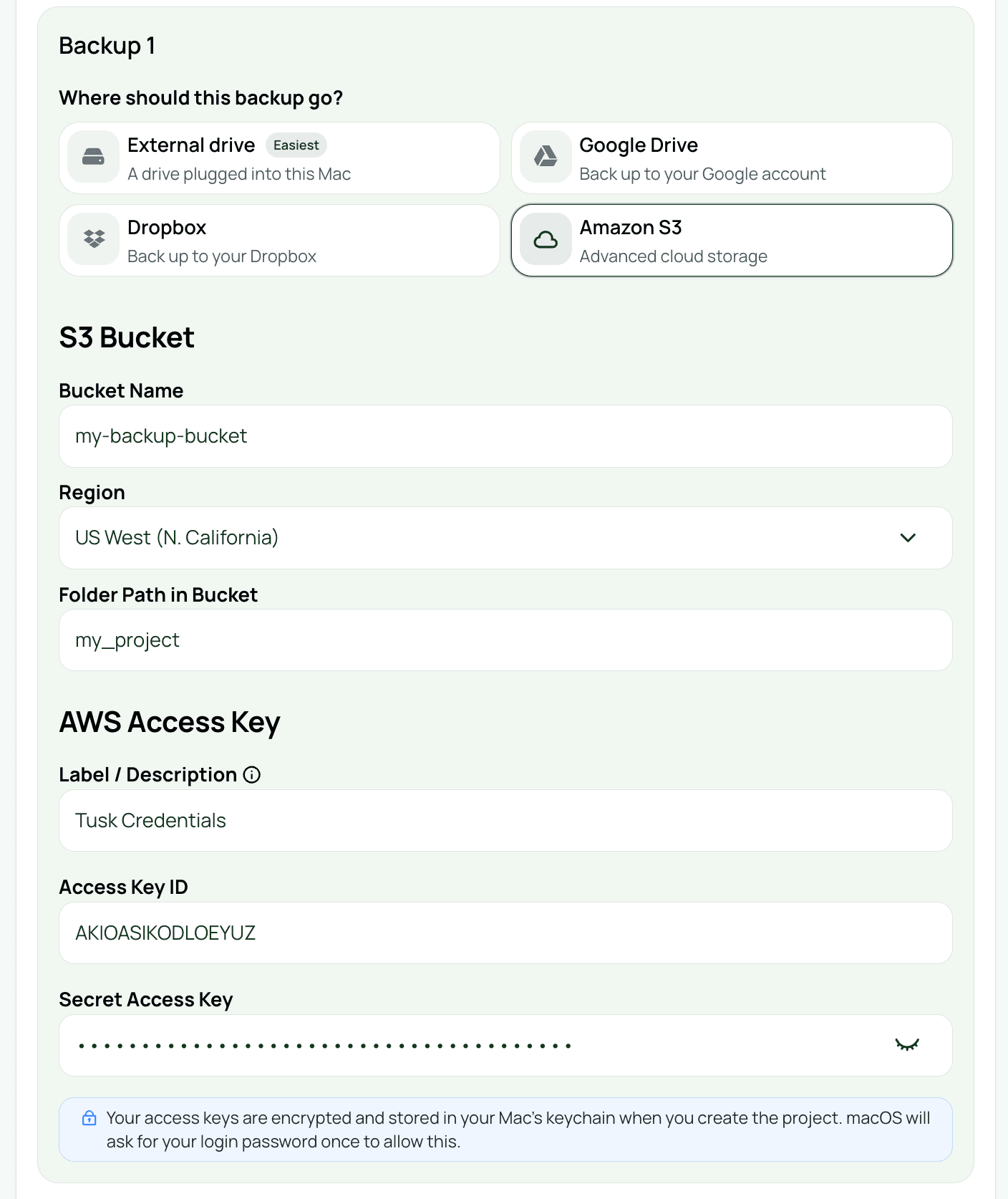
Add an S3 destination in Tusk
- Endpoint URL:
s3.<your-region>.amazonaws.com - Bucket: your bucket name
- Folder: a subfolder for this project (e.g.
projects/wedding-2026-04-15) - Access key ID and Secret access key from the previous step
2
Test the connection
3
Save and confirm Keychain access
Related
Next
Backblaze B2 →