
Projects
Project basics
What a project is, what it watches, and how to organize your files inside it.
A project is a folder on your Mac plus a list of backup destinations. That's the whole definition. Destinations can be external drives, Google Drive, Dropbox, or S3-compatible storage. Tusk watches the folder and syncs every change to every destination.
The folder is called the primary folder. It can sit anywhere on your Mac as long as it's on a local drive (not under /Volumes/...) and doesn't overlap another project's primary folder.
What Tusk tracks inside a project
Every file inside the primary folder, including files in subdirectories at any depth. Tusk crawls the folder recursively when you create the project, registering every file in its index. After that, the file watcher picks up new files, edits, renames, moves, and deletes in real time.
A few system files are filtered out and never tracked: .DS_Store, .Spotlight-V100, .Trashes, Thumbs.db, and similar OS-generated junk. They don't show up in the file table, they don't get backed up, and they don't count toward the project's size.
Save your editing app's project files inside the folder
The single biggest workflow tip in Tusk: put your editing app's project files (Premiere project, DaVinci Resolve database, Lightroom catalog, Logic project, etc.) inside the primary folder.
When Premiere autosaves at 2am, the .prproj file changes. Tusk's watcher sees the change within a second and queues a backup of the new version. Same for any export you drop in the folder, any new render, any side file you save. You never have to remember to back up your project file. It just happens.
A clean structure that works for video projects:
Wedding_Smith_2026-04-15/
├── 01_footage/
│   ├── A_cam/
│   ├── B_cam/
│   └── audio/
├── 02_project_files/
│   ├── Wedding_Smith.prproj
│   └── autosaves/
├── 03_exports/
└── 04_deliverables/
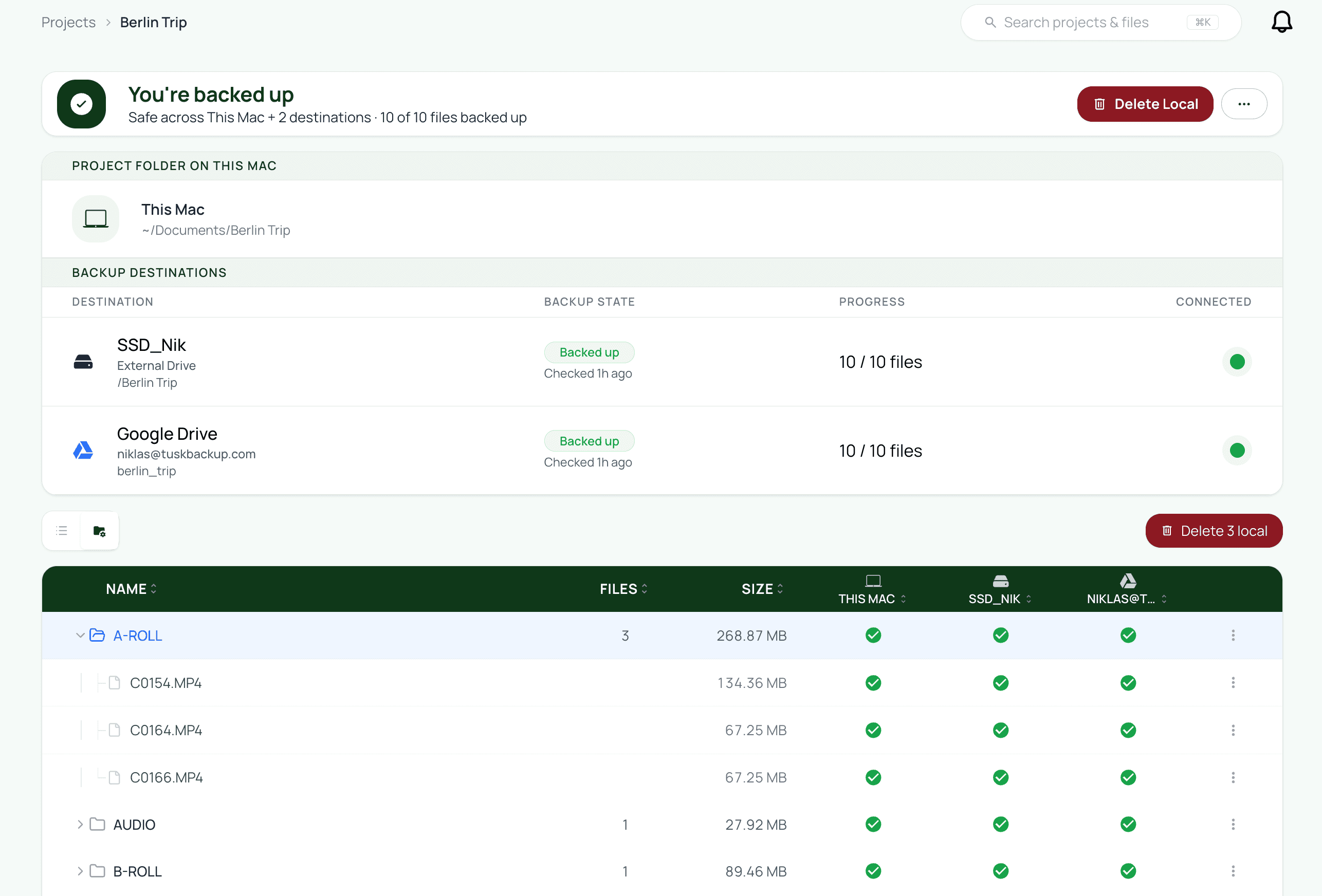
How the auto-watch handles changes
Tusk uses chokidar (the same file watcher VS Code uses) to detect filesystem events. It catches changes almost immediately and translates them into work for the job queue.
- New file: registered in the index, BLAKE3 hashed during the first transfer, queued to every destination.
- File edited: re-hashed, the new version replaces the old version on every destination.
- File renamed or moved: Tusk follows the file (it's the same file, same hash) and updates the path on every destination so the destination structure mirrors your local structure.
- File deleted locally: Tusk doesn't delete from your destinations. The file's status switches to “Not local” but the backup copies remain. To delete from destinations as well, use the Delete from everywhere action explicitly.
What Tusk doesn't track
Anything outside the primary folder. If you have raw footage on an external drive that you haven't copied into the project folder, Tusk doesn't see it. To bring outside files into a project, either copy them into the primary folder (Tusk picks them up automatically) or use Offload (Tusk streams them to your destinations directly without copying locally).
Project status
The project header shows the project's aggregate state:
- Synced: every file has a verified copy on every destination.
- In progress: transfers or verifications are running.
- Partial: at least one file is missing from at least one destination.
- Disconnected destination: a backup drive or cloud service can't be reached. Sync to the others continues.
- Folder missing: the primary folder was renamed or deleted while Tusk was watching it. The project shows a banner asking you to relink.
Pausing and deleting projects
Pause a project from the More actions menu on the project page to temporarily stop watching the folder and stop running syncs. Resume from the same menu when you want it to start again.
Deleting a project removes it from Tusk's index. Tusk does not delete your local files or the backup copies on your destinations. Both stay where they are. You can recreate the project later against the same folder if you want to start tracking it again.
Don't move the primary folder while Tusk is watching it
Related