
Projects
Project settings
The per-project settings page lives behind the gear icon in the project header. Here's what each control does.
Open Project → Settingsfrom the project header (or the More actions menu) to get to a project's settings. Most of the things you set when creating the project are editable here later.
Name and description
Rename a project at any time. The new name is reflected everywhere in the app immediately and shows up in the next search re-index pass.
The description is a freeform text field. It's not shown in the project header by default, but it's indexed by the cross-project search, so a description like Smith family wedding April 2026, ceremony at Jardins makes the project findable a year later when you only remember “Jardins”.
Tags
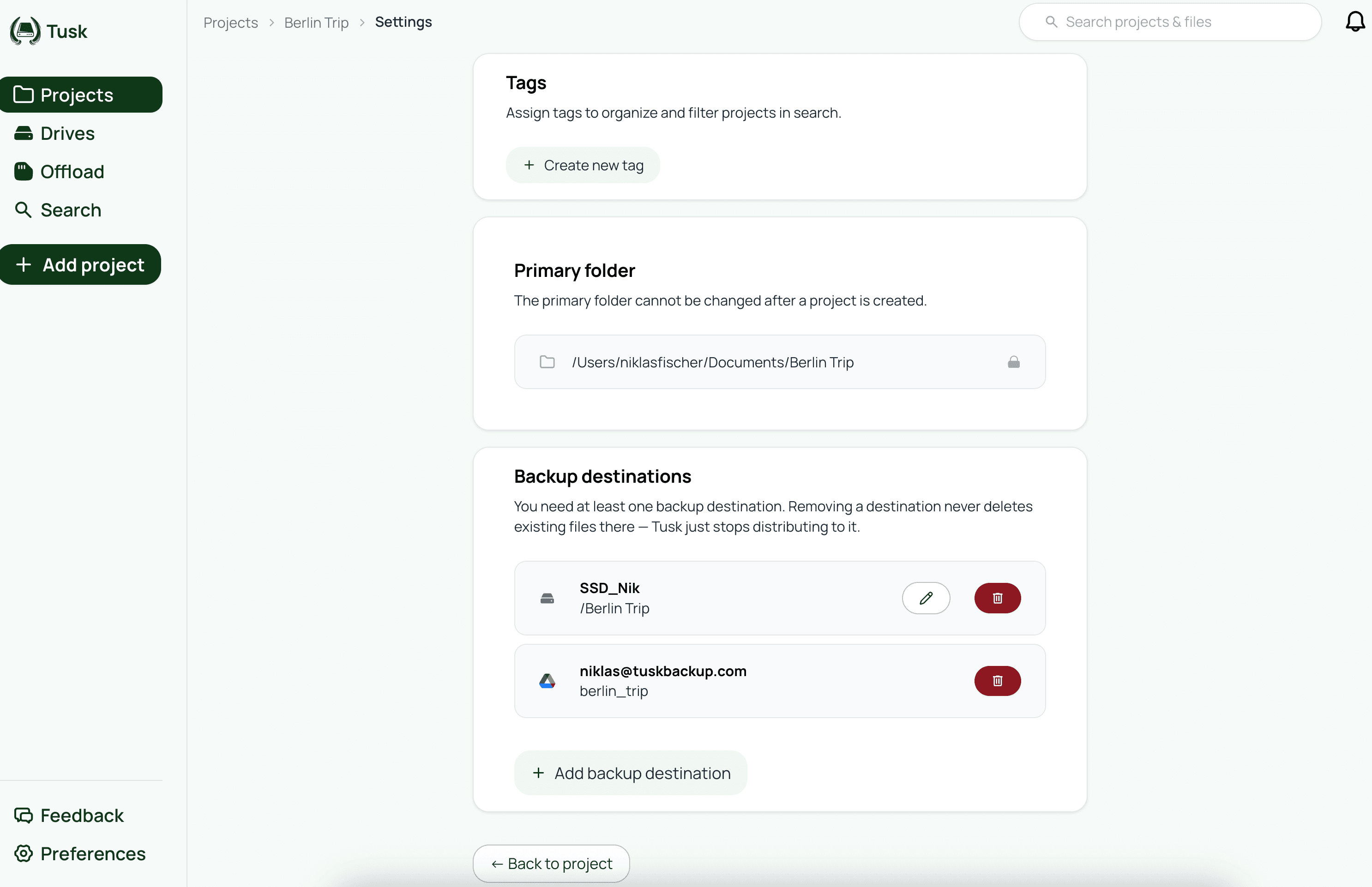
Project tags help with filtering on the projects overview and on the search page. Add tags from the settings page (you can create new tags inline) or from the projects overview by right-clicking a project. The full Tags page covers tag colors, file-level tagging, and how filters work.
Primary folder
The primary folder is read-only on the settings page. To change it, you have two options:
- Rename or move the folder in Finder. Tusk detects the change, shows a Folder Missing banner, and offers a Relink folder action that lets you point the project at the new path. Once relinked, everything resumes.
- Delete the project and create a new one. If the file structure has changed substantially, this is cleaner than relinking.
Backup destinations
The backup destinations list shows every place this project syncs to, with a connection state indicator next to each entry.
- Add a destination: opens the same destination picker as the new-project wizard. Pick an external drive, a Google Drive or Dropbox account, or an S3-compatible bucket.
- Remove a destination: stops syncing to that destination going forward. Tusk does not delete the files it already wrote there. Remove them yourself in Finder or in the cloud provider's console if you want them gone.
A project must have at least one backup destination at all times. The remove action is blocked on the last remaining destination; either add a new one first or delete the project itself.
Tusk supports up to five backup destinations per project. The cap exists because more than five rarely produces real benefit and it makes the file table harder to read. The Choosing your destinations page goes into how to pick the right number.
Adding a destination triggers a sync of every file
Pause / Resume project
The Pause and Resume actions are on the project page itself (in the More actions menu), not the settings page. Pausing stops the watcher and the sync queue for this project. Other projects keep running. Resume picks up where you left off, including catching up on changes that happened to the primary folder while paused.
Delete project
Delete project removes the project from Tusk's index. Important things to know:
- Your local files in the primary folder are not touched.
- Backup copies on every destination are not touched.
- Tags assigned only to this project are not deleted; they remain available for other projects.
- Re-creating the project against the same folder later re-indexes from scratch. Existing backup destinations won't auto-reattach; you'll need to add them again.
Related
Next
The file table →